VoxAid Support & FAQs
Here are some common questions about VoxAid products.

Here are some common questions about VoxAid products.
How can I see and download a list of the commands available?
VoxAid commands cheat sheets (PDF)
I have a strong accent, will the voice commands work for me?
Yes, VoxAid utilises the Dragon application to perform application commands. Therefore, if a command is not responding to your dictation, you can train Dragon to understand how you pronounce the command phrase.
Select the “Improve recognition of word or phrase…” option via the DragonBar >> Audio menu.
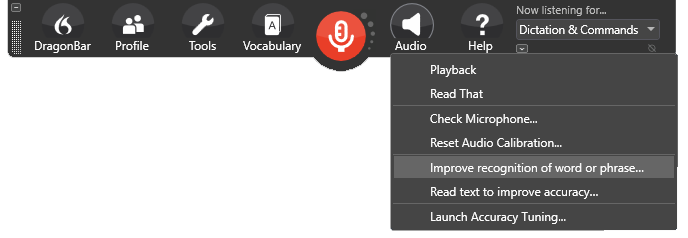
This will reveal the “Training” window.
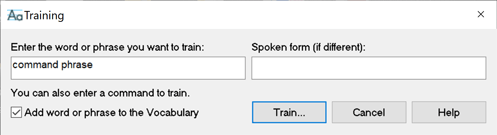
Insert the word or phrase (command phrase) required to run the command and click the “Train” button.
To enable you to carry out the training process, the “Train Words” window is presented with the word or phrase to be trained.
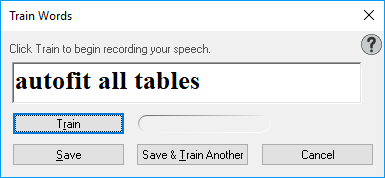
Click the “Train” button to record your speech and then click the “Save” button.
I have more than one profile setup in my Dragon application, is this an issue?
No not at all, once VoxAid has been installed, the VoxAid commands are made available to all your profiles in your Dragon application. Also, when creating new profiles, installed VoxAid commands are available to the new profiles as well.
How can I check if VoxAid has been successfully installed?
Once you have completed the installation process, open the DragonBar and select the Tools menu option.
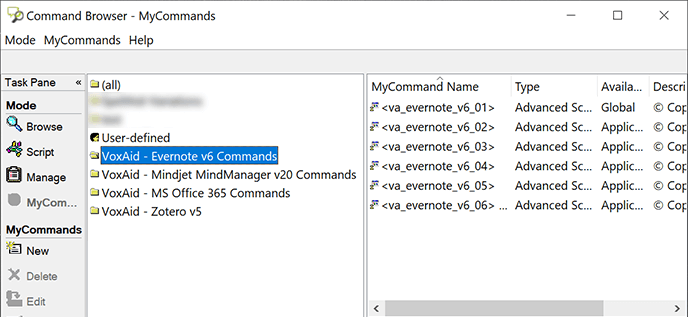
Select the Command Browser option and you will notice a list of VoxAid command groups.
If you have any further issues, do not hesitate to contact us using the form below.
I have installed VoxAid but the commands are not available to me.
If you have installed VoxAid while the Dragon application is open, exit and restart Dragon, the VoxAid commands will then become available for use.
The VoxAid commands for my application appear to have stopped working.
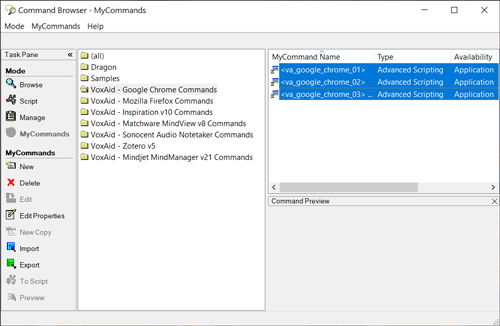
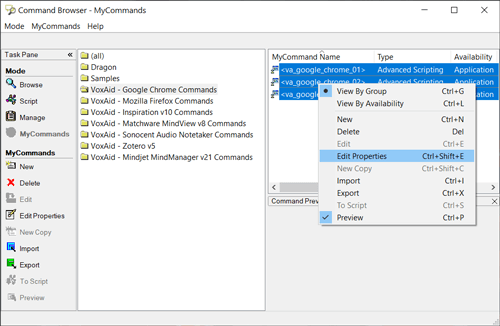
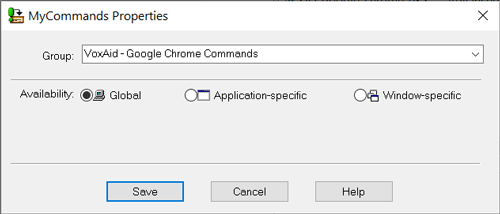
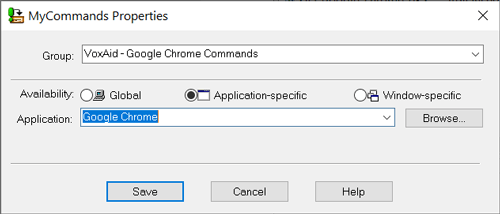
This is more than likely the result of an update to the software application in question. For example, Google Chrome often updates without you knowing and as a result your dictated commands in Google Chrome may not work as expected.
How can I suggest a new command phrase for one of my applications?
We are open to and review command phrase suggestions from our users. Please use the contact form below to let us know your suggestions.
How can I see and download a list of the commands available?
VoxAid commands cheat sheets (PDF)
I have a strong accent, will the voice commands work for me?
Yes, VoxAid utilises the Dragon application to perform application commands. Therefore, if a command is not responding to your dictation, you can train Dragon to understand how you pronounce the command phrase.
Select the “Improve recognition of word or phrase…” option via the DragonBar >> Audio menu.
This will reveal the “Training” window.
Insert the word or phrase (command phrase) required to run the command and click the “Train” button.
To enable you to carry out the training process, the “Train Words” window is presented with the word or phrase to be trained.
Click the “Train” button to record your speech and then click the “Save” button.
I have more than one profile setup in my Dragon application, is this an issue?
No not at all, once VoxAid has been installed, the VoxAid commands are made available to all your profiles in your Dragon application. Also, when creating new profiles, installed VoxAid commands are available to the new profiles as well.
How can I check if VoxAid has been successfully installed?
Once you have completed the installation process, open the DragonBar and select the Tools menu option.
Select the Command Browser option and you will notice a list of VoxAid command groups.
If you have any further issues, do not hesitate to contact us using the form below.
I have installed VoxAid but the commands are not available to me.
If you have installed VoxAid while the Dragon application is open, exit and restart Dragon, the VoxAid commands will then become available for use.
The VoxAid commands for my application appear to have stopped working.
This is more than likely the result of an update to the software application in question. For example, Google Chrome often updates without you knowing and as a result your dictated commands in Google Chrome may not work as expected.
How can I suggest a new command phrase for one of my applications?
We are open to and review command phrase suggestions from our users. Please use the contact form below to let us know your suggestions.